5/07/2019

Debian/Ubunt Package Installation from Default Repositories.

Before you Begin

Note: This is meant to be a building upon the previous posts with minimal repetition, the previous post has relevant information,

Your chosen distribution will have a default package depository in which the "apt" (or apt-get) will retrieve packages maintained by the fine folks who maintain your Linux distro. I am using Ubuntu Server 18.04 LTS to create this post, if your experience may vary with different versions and distributions. Also remember to update your package list and upgrade your existing packages: with the "sudo apt update" and "sudo apt upgrade" commands  Alsot note: This is meant to be a building upon the previous posts with minimal repetition, the previous post has relevant information,

Finding Packages Names

"apt list <argument>".

The argument can include full names or partial names with a * character at the beginning and/or end of the partial word.


To Install Packages


"sudo apt install <package name>"


To Remove Packages


'apt remove <package name>"

 
Note: I used Telnet simply as an example, I do not suggest using telnet outside of legacy situations or during the configuration process.  It is a rather insecure protocol and old protocol that should only be used when there are no other options or in a learning lab environment.

5/01/2019

Updating Debian Based Linux Installs


The Package Management System


Applications and the operating system itself is broken down in to piece of software called packages. Packages can be installed, uninstalled, and updated independently of each other.  Packages are held in depositories.  Depository's must be configured by URL, although a there will be a default depository per-configured for your Distro's Make and Model. Th default depository maintained by Ubuntu developers with stock packages that they maintain, regardless of the organization or team that wrote the software. This ensures everything you install has been compiled and tested for your specific version of Linux.  Third party developers can and do maintain their own independent depositories, which can added or removed bu the user/administrator, Although that will be covered in a future post.


APT


For Ubuntu and most other Debian based distributions to install software updates the command you need to know is  "apt".  apt is a a command that streamlines the use of two other commands "apt-get" and "apt-cache" into a single and more user friendly command. This command uses a the Debian Package Management System. "apt" is a front end command for both  "apt-get" and "apt-cache" commands into a single more user friendly command.

General Usage Structure:


"sudo apt  [options] <commands/argument>" - as usual you can get more information via "apt --help" and "man apt"

Update Package lists.


"sudo apt update"  - This updates the package lists.  It downloads fresh package lists and compares it to the system's own list of installed packages. It does NOT download or install any actual updates!


"sudo apt upgrade" - downloads and installs new versions of installed packages. It does not install any new dependencies.

"sudo apt full-upgrada"  will upgrades to the new version of the packages and install new dependencies.

"sudo apt autoremove"  - Removes unused packages, freeing up storage space.

Getting information with apt. 

 "apt list" - lists all packages, probably will fill buffer.

"apt list --installed" - lists installed packages.

"apt show <package name>"  - shows information about specific package(s).  Can use * symbol to list multiple matching.


4/22/2019

The Basic Linux Commands

The inspiration for starting the Linux-centric series of post is finding the follow image posted on r/Ubuntu by u/Tunliar 

This is most of the core commands to using the Bash to administrate a Linux system with the command line.

How ever great the --help and man files are, they are were written and updates by someone who knows much more about Linux than you and often omit key basic definitions of abbreviations , lack explanations of concepts, and have abrupt descriptions for the arguments requires for the command. I find the best way to understand CLI commands is to create a written lab journal in a composition book, that can be used to jog your memory date, weeks, or months from now.  A well configured server shouldn't need constant administration.  A great problem with technology, you will always remember that you did something, but not the specifics of how you did it.  Ron Popeil once said. "Set it and forget it", creating a journal is a great way to better memorize and create your ultimate offline documentation. 

Write an entry for each command written in your own words, .  Sit down at and spend the time to digest the command's --help and man outputs, practice using the command's options, and then write down in your own words how to use the options and create valid arguments to achieve tasks. When I say, in you own words, try to avoid copying the man or --help word for word,  list the options and define them using words and explain the arguments in a manner that you best understand and customized for your specific reading level.

Keep this journal near your workstation.

4/21/2019

The Linux Command Line is your friend.


With Ubuntu 18.04 LTS is installed and access configure, it is time to administrate it, using the command line interface.  This means typing, lots of typing.  Historically the Command Line Interfeace itself dates back to the era of Bell Bottoms pants and Teletype machines. As computers and software evolved one interface lead to another, which lead to another.  Today Linux uses Bash (Bourune Again Shell), who's beta release happened in 1989 for UNIX, predating Linux's own birth by 2 years.

However powerful, using Bash or any CLI is not forgiving of mistakes.  There is a premise of Garbage In/Garbage Out,  where if you don't use the correct spelled, cased, or syntax for the  commands you will not get the desired output..  At worst messing up a command will delete files, destroying data or damaging the operating system.. Hopefully you just get a message that the command isn't recognized or that the package associated with it isn't installed.. With great power is great responsibility, if you make a major mistake it could be a resume generating event.

Giving Yourself Superuser Powers

sudo

The most important commands to remember is "sudo" if you need to do almost anything important, chances are you will need to use it.  Sudo is must be added before any command that requires Super User (or commonly called "root") permission, and requires the password of the use who issued the account.  Ubuntu does not even assign a password for the root account for security reasons. To do anything that requires Super User permission, you must use sudo. Before the command runs you will be asked to provide the password for the users you are logged in with.


Notice the first attempt to run the command "apt update" the it runs into permission denied for it's operations, but with "sudo apt update" it runs fine.

Builtin Help and Manual

No normal human is able to memorize every command's options and arguments.  Back in the 20th century, users relied upon printed manuals that came with your computer or came in the Retail Box of your Operating Systems.  Normally you keep within arm's reach of the user, even if you didn't need it very often.  If you went to early university computer labs,  each terminal or micro computer likely had a binder with some form of documentation for users to reference.
The User and Reference Guide that came with MS-DOS 5.0 in 1991, the same year Linux Torvolds. announced his little project. on Usenet.
Today, Linux developers have gracefully built this resources into CLI.

--help


Bash commands allow for great amount of control of the command, with option and arguments that generally are used in this format:

Command  [option]  <argument>

Every command has a  "--help" option which lists options describing their use and any arguments they would require, this is intended to be a quick reference.
The output of running "apt --help"

man


While the --help outputs basic command usage,  Ubuntu has a  manual for every command, often referred to as the "man page" or just "man".   It is accessed with the "man" command followed by the command you want to read about'  for example "man apt"
First page of the man for apt.
Note: You will need to navigate with the arrow keys for single lines or page up and page down to move an multiple lines at a time.

If would rather read them in a browser they can be found at https://manpages.ubuntu.com/manpages/bionic/.  Note, each release has it's own set of man pages, 18.04 is named bionic beaver and it's man's are in the /bionic directory, other version of Ubuntu have their own directory.  Desktop and Server versions use the same man pages.

Summarization or TLDR

Linux uses the Bash Command line.  If you get a message that don't have permission to perform a task, type sudo before it and then supply your password you upon request.  If you need help using a command, type "<command> --help" to get a simple command use output.  If you need more information than that, type "man <command>" to read a more in depth manual for the command.

Up Next:  Learning the Basic Commands. 


4/15/2019

The Headless Server

Going Headless With Ubuntu 18.04

I define a server as a computer that you don't sit in front of and/or directly interact with.  Right now the project is really more like a desktop without a GUI interface with only packages that come standard with the OS.  This post will focus on two methods to indirectly administrate an Ubuntu Server. 

SSH

Secure Shell. or as most refer to it as SSH, is an open protocol for securing network services, and has long been the de facto remote access for CLI administration. 

During install you of either the "Live" or "Alternative" installer for Ubuntu-Server, you will have been given a choice to install OpenSSH.  If not installed, use the the commands "sudo apt install openssh-server" and "sudo apt install openssh-client".  Once installed there is no other configuration required to accept incoming connection, but you will need to know the server's IP address, which can be found by running the command "ip address".

You can then connect to your server from any workstation, laptop, tablet, phone, other servers, or whatever device with network connectivity and whatever SSH client of choice just like you would with a Router, Switch or Firewall device. For now, I will be simply be using the crypto key that is automatically generated for now. Importing or generating custom SSH Keys is topic for another post.

SSH provides a secure connection between two systems for remote administration.  BUT if the network connection fails for any reason, you are unable to establish a connection and must resort back to previous means.

Serial Console

If you have dealt with pretty much any enterprise network gear yous should be familiar re with what a , RJ-45 console port,  DB-9 port, Cisco Cable, and Rollover Cable.

Console port on a Cisco Router


Console ports utilize a null modem connection to facilitate communication between two DTE devices to give an administrator CLI access to the device. Today most modern network gear uses a RJ-45 instead of a DB-9 (DE-9) for the RS232  communication.  If that makes you head spin, realize this the 9 pin serial port is really old and yet still used because it works and has rather low overhead to create a simple channel of communication. 

The Physical connection.

To get started you will need these three things:

  • Serial interface for the Ubuntu Server 
  • Serial port for the Client/workstation
  • Null modem cable to connect between the two.

Serial Ports

Red Arrow pointing out the 9pin serial port, notice the difference with blue VGA port and the Magenta Parallel port.
Fortunately the motherboard I chose for my server has a Serial Port, and most "server" motherboards do as well.  If your consumer grade motherboard doesn't have a serial port on the I/O shield, it might have a header on the motherboard  and you can get a serial port bracket that will plug into it.  If your server and/or desktop/laptop doesn't have either. There is a wide variety of serial port USB adapters and pci/pci-express expansion cards that won't break your bank.

The Cable

While I have boxes of different types of  cables going back years, one thing I didn't have was a null modem cable.  What I do have is plenty of "Cisco" console cables, one end is RJ-45 and one end DB-9. 

So instead going to a computer store in the next county or waiting for one to be delivered, I built my own from a cannibalized Cisco cable .

A quick and dirty method would be cut the RJ-45 ends splice the individual wires in the correct pinout. Note: This is basically making a rollover cable, matching up pins 8 to 1, 7 to 2, 6 to 3, 5 to 4, 4 to 5, 3 to 6, 2 to 7, and 1 to 8.

Or if you like color coding :
Grey - Brown
Orange - Blue
Black - yellow
Red - green
Green - red
Yellow - black
Blue - orange
Brown - grey

This would work if you are in a crunch. But, I came to the conclusion while trying to strip the individual wires that it would be to easily damaged.


I needed a long term and more durable solution to reuse in my lab.  So, I bought a RJ-45 telephone jack  (a few bucks cheaper than a cat5/cat6 jack) from a local big box store. Turns out 4 line telephone jacks and Cisco console cables have different wire colors, so I painstakingly created a rollover pinout between the color groups, including the needed rollover. 

Telephone  -  Console
blue           -  Grey
orange       -  Orange
black         -  Black
Red           -  Red
Green        -  Green
Brown       -  Blue
White        -  Brown


Now that you have the cable in place, open up your favorite terminal emulator on the workstation/desktop/laptop for the appropriate COM port with the default settings (including 9600 baud.)  Leave it open and ready to console output.

* Note: You could do the same thing with a cat5 keystone jack, you would just need to match up pins in reverse order to achieve rollover.

Configuring Ubuntu Server

There is ONE command to add to your grub configuration and systemd seems to take care of the rest, you simply add "console=ttyS0" to your grub boot options.  For those not familiar with the linux command line yet,  I have step by step instructions:


1. To edit your Grub config use the command "sudo nano /etc/default/grub"

2. Once in the editor, find the GRUB_CMDLINE_LINUX_DEFAULT= line and add console=ttyS0 (that is a Zero at the end, not the letter 0). 


3. If there is already something between the parentheses use a space to separate it and place it after it. 

4. After you have added the line ctrl + o to write (save) your changes and ctrl + x to exit the nano text editor.

5. The configuration file change must be applied with the command "sudo update-grub" AND since grub is a bootloader you must reboot the system for the change to take effect, issue the  "sudo shutdown -r 0"

6. Return to your workstation and wait for Linux to start booting.

* Unless you have a motherboard that supports console output during boot and that option has been configured in the bios, you will not get post information or any output till after grub starts Ubuntu.

Connecting to a Terminal or Console Server

A Terminal/Console Server allows a user to use SSH (or telnet) into serial/console ports, among other things. bridging remote telenet/ssh to console access.  These are often employed in Data Centers and Network cabnets/closets in which a server administrator should not be given physical access.

To connect all you need is a standard "Cisco" console cable, plug the DP-9 into the ubuntu server and plug the RJ-45 into the Terminal/Console Server, and you can access like any other piece of network gear.

More on Cabling


Back in the early days of computing when serial cabling was first standardized, they gave it around 50 feet of length based on the cables using wire standards available in the 1950's and 1960's. Decades we can use cat5 around triple that original distance, you can even use existing cat5/6 straight through cabling,  as long as there is ONE rollover cable used instead of a patch cable.

4/13/2019

Venturing Down The Linux Rabbit Hole

A New Project

     This is the start of a new series of posts documenting my exploration and configuration of Ubuntu Server 18.04.2 LTS  with the objective of having a better understanding what is under the hood of Linux and how to interact with it's CLI

Why Ubuntu?   

    Ubuntu it self is a widely supported and adopted  Linux distribution and is also based on another widely supported and derived (parent) Linux distribution, Debian. Canonical, which is the parent company for Ubuntu, itself maintains many versions of Linux for different forms of hosts and "flavors" the individual forms Ubuntu . Then you have third parties who take Ubuntu make their own derivatives like Mint. But when you get down to it, Ubuntu itself is a derivative of Debian which likely be the most derived and one of the oldest Linux distributions still actively being developed. With any luck most of the knowledge and experince gained from these exercises will remain relevant long into the future. 

Why Ubuntu Server? 

    This project is an exercise to force myself to use CLI commands and familiarize myself with the underlying environment and remote access. Ubuntu Server has most if not all of everything Ubuntu is under the hood, minus the Graphical User Interface (GUI) environment and associated applications.  After the next post, I  will not have display or input devices connected to it after the initial configuration process. As of starting this, 18.04.2 LTS (long term support)  is the latest/newest version that will have the longest time of support.

Note: there are are even two different installer versions (The standard )  for a more in information I suggest reading this link,  At the most basic level,  the  more easily e easily  found "line" installer the image uses a Canonical/ubuntu brewed installer and installs a slightly different set of package (notably ncluding openssh server) and the "alternative"  (which lacks the word "live" in the file name) uses the Debian installer.  Again read the link for the best comparison between the two versions.

What to expect in these posts?

    This documentation is intended to be a building block towards knowledge based on an existing foundation.  It will assume the reader has knowledge of PC hardware, OS installation, networking protocols, competence using MS Windows, bios settings, and etc. I will highlight what I considered important leaps from my base of knowledge and important things that might not be clearly explained difficult to pick out from the "--help" and "man" pages can be accessed in from the CLI of the OS itself.  The underlying goal is to configure and implement protocols and services on Ubuntu-Server and co-exist with devices running  much more popular Operating systems that people directly interact with,  Android, Windows, and Chrome0S.

But aren't Android and ChromeOS Linux based operating systems themselves?

    Under the hood yes,  but most users will never touch the actual "Linux" parts nor made aware of them.  For consumers, Linux is best when the user him or herself does not have to touch it nor is made aware it is there.

Gasp,  you forgot about iOS and OSX?

Nope, but I am trying. I do not own Apple products (nor condone their purchase). I simply cannot write about my experiences with hardware/software I do not own

 Onward to the real meat and potatoes...

Part 1 -  The Environment

The Hardware

While most people would be content with starting this process in a virtual machine, there is something so much more appealing to me with just running an operating system on directly on the hardware without anything in between to worry about. .Especially for someone like me who doesn't have a box already built running multiple other machines.  For purposes, I have built a system from disused parts in I've been collecting.


What I am working with:

  •     AM2+ socket motherboard (Foxconn A76ML-K w/ 760g chipset)
  •     AMD Phenom II X4 945 (95 watt version)
  •     2 x 2Gig ddr2 dual channel ram
  •     80GB SATA HDD
  •     2 PCI 100mbit Ethernet cards
  •     AND a grab (anti-static) bag of expansion cards I will be swapping out in the future.
This very much so is becoming a legacy system, but should be ok enough for learning,  Also note, if could use a USB flash drive, or even a SSD isntead of a HDD like I am using.  Linux isn't that picky about where it installs from, just make sure your bios supports booting from it.

Turning a box of hardware into a Server.

Download and create installation USB Flash drive. 

    Files can be download easily from Ubuntu's website,,  I will be using the "Alternative Ubuntu Installer" which doesn't install the cloud-init package.  If you downloaded the image on a Windows machine like Id id, use a piece of software like Rufus to create actual installation flash drive. 

Building the System.

These are my general steps for system building:

    1. Construct the core of system (Mother Board, CPU, RAM, PSU) together in a case.
    2. Plug in power, Keyboard, monitor, network cable, and etc.
    3. Turn on to see if posts, if it doesn't, time to troubleshoot.
    4. Once you are sure the computer posts, unplug the power cable, and add expansion cards, storage drive, and insert the installation flash drive.
    5. Clear the BIOS with the jumpers on the motherboard or momentarily pull the battery from the system. When building with a new or used motherboard a clean slate is best, the bios will need to go through some steps to recognize the CPU and it's feature sets.  Do not skip this step.

Configure the BIOS.

 NOTE: As previously mentioned I will not go into detailed instructions. Every motherboard is different, your experience may vary.

    1. Disable onboard hardware that will NOT be used. If you are using older hardware there will be  legacy  features including floppy controller, IDE, parallel port, IR, sound, and etc that you will probably not need.  Warning.  Make sure NOT to disable useful/needed hardware like integrated graphics (IGP), serial interface(s) (yes, keep the serial rs232/DB9), SATA, USB, onboard Ethernet, and etc. If in doubt leave it enabled. 
   
    2. Configure the onboard hardware you will use.  This includes:setting the SATA interfaces to AHCI mode and enable Wake-on-LAN (WoL).  You could also reduce the ram dedicated to the IGP to the lowest amount allowed, Ubuntu-Server lacks a GUI environment and the intention is to run it headless (eventually.) and dedicating it to the IGP will make it inaccessible to the OS for system ram.

   I also like to take the opportunity to set the motherboard's fan's settings to be quiet and only spin up when temperatures are high.  Most motherboards will default to running the fans at 100% regardless of load/temperature, which is good for the system health bad for people that might spend long periods listening to them.
   
    3. Double check previous steps, and set your boot order to for installer USB flash drive first, save config and restart into your install flash drive.

Install the Operating System

    1. Install Ubuntu-Server from the flash drive remove USB upon reboot. I let the installer automatically partition and format the system drive.

    2. Return to the bios and remove USB boot option from boot order.  Keep in the flash drive handy, to either re-install or attempt to fix a borked install in the future.


Once you have booted into Ubuntu-Server it should leave you with a CLI interface requesting a user name and password.

Next Post - Going headless.

1/29/2019

SMB Sharing with Windows 10


        SMB, short for Server Message Block often used  interchangeably as SAMBA (which is really a re-implementation of the protocol by a third party) is a Microsoft protocol that predated Active Directory for sharing files between computers. 

        As Microsoft has continued to maintain and develop new versions of SMB, the added security has made it more complicated for users to implement on their home networks. With the removal of Homegroups, SMB has  once again become the de-facto way to share files between computers again.  This is a general tutorial to share files using SMB on windows 10 specifically.

Before you begin. 

         When to use this protocol. SMB works on a client server topography where a computer sharing the file is serving the data to the client who accesses them.  This guide will assume that both computers are on the same network segment and do not require access.

         This guide will assume you have at least  two Windows 10 machines, one to act as server and one to act as client client. for the purpose of this guide I used windows 10 1809 Professional. The two computers are also on the same subnet with connectivity verified with successful pings..   Your experience on other versions of Windows may very.

Step 1 -   Create a User Account to Access the File Share.

         The latest implementation of SMB, forces authentication, and you must use an username and password for an account that exists on the machine acting as server. I have found the best practices for sharing with multiple users and devices is to use an specific account just to access the shares and not an account used by an actual user of the system being used as server.
   
         Got to Settings > Accounts > Family & other users and click "Add someone else to this PC"

  
         Create an LOCAL account. There are two options, create an account for every user you intend on giving access and setting individual rights based on the user OR create an account for multiple users/devices to use for read access. I will show how to set up the latter.

         For a read only account you plan to use on multiple other devices, I suggest a simple and short user name and password you can easily remember to be typed into smaller touch screen device.
   

         Unfortunately Windows will make you set up PW recovery questions. Personally,  I just entered the same BS response since this isn't an account for any one specific person..  If you do set up an account for individual users you may want to take it more seriously.

  
          Now, you've created an account for other devices to access your share, someone could take those credentials and login locally to your machine. This should be avoided for obvious reasons. .  You can disable the account from being able to login locally or (if you have Windows 10 Pro) Remote Desktop. To accomplish this you need to access Group Policy editor.  Go to your search, type "gpedit.msc", and press enter and "Local Group Policy Editor" will launch. WARNING BE CAREFUL! This is a rather powerful tool, only change the specific settings mentioned in this tutorial.
   
         Follow the path of Computer Configuration > Windows Settings > Security Settings > Local Policies > User Rights Assignment (as pictured below.)
   

         Right click "Deny log on locally" and select properties. A new box will open up, click "Add User or Group"
   

         Type the user name previous created and click "Check Names" and if you entered the username correctly it will change to be in the format of hostname/username.


         Click OK to close that box, click ok and then click ok again.  it should list the host/user along with the guest account.

   
          Important!!! repeat same process for "Deny log on through Remote Desktop Services" if you are using the "Professional" version of Windows, other Windows Home doesn't include this feature.
   
Step 2.  Create the Share and Set Permissions.

         With the account is ready, the next step is to create the share and give the user permission to access it. For the folder/directory you intend on sharing, right click the folder icon and select properties..
   
  
         Click on the sharing tab.
   

          In the box that opens up, click where the red arrow is pointing and select the user account previously created in this tutorial.  Then click "add".
 

         If you need to give the user rights to write to upload to the share, change that here


         Click share, the window should change to say the folder is shared. Click done and close the properties windows.
   
   
Step 3 - Advertise the Share to Computers on the Local Network (Optional).

         To make your share easier to find on other computers you will need to turn on the "Function Discovery Resource Publication" service.  If you are going to give guests, friends and family access to a network share, this is the easiest way for them to find it. Do no active use this unless you are sure you want everyone with a computer to know you have a SMB share. 

         Type "services.msc" into your windows search and press enter. It will open up "Component Services"
   

         Click "Service(local)" to see the list of local service.
   

         Find "Function Discovery Resource Publication" in the list, right click and select Properties to open up the properties window.
 

         Click "startup type" and set to "Automatic" or "Automatic (Delayed Start)"  then click "OK" to close the window.  Right click on "Function Discovery Resource Publication" again and select "Start" to get it started now without restarting your computer.
   
Step 4. Testing Access to the Share.
  
         Method 1. On your client Computer go to your windows search window or address bar of File Explorer and type two "\" followed by the IP address your server. For example "\\192.168.0.1".  You can also access it with the server's Hostname instead the IP address, for example "\\32BITWIN10-A". 
 

         After you've established the connection, you will have to enter the username and password to achieve access. 
   
         Method 2.  If you did turn on "Function Discovery Resource Publication" service in step3, accessing is even easier. Just got to File Explorer and click on "Network" and your server's hostname should appear.
 

More than Just Windows.   
  
         This share can also accessed by any device that has a SAMBA client, which is pretty much means any device with a network interface these days. You can access this share from Linux. Mac, Android,  and directly access the share from popular media playing applications like Kodi/OpenELEC.  Just make sure your system with the SAMBA share is running.

11/17/2017

Unbricking a Cyclades Terminal Server

Unbricking and Updating a Cyclades Terminal Server (TS)  After a Failed OS Flash


This is a formerly bricked Cyclades TS3000, just one of many models (TS400, TS800, TS1000, TS2000, and TS3000) of Terminal Servers originally sold by Cyclades  which was bought by Avocade, which was bought by Emerson Network Power,  who changed their name to Vertiv.  The last OS update was released in 2008 and it reached it's end of life years go,  they can be found for a few hundred dollars on eBay or various re-sellers.


They are a 1U piece of rack mount gear, the TS3000 has forty-eight (48) RJ-45 serial ports, one 10/100 Ethernet port, and a Console port.  Inside the box it is has a 48mhz PowerPC CPU,  128 megabytes of ram , and a 8 megabyte CF (compact flash) card.  It runs on an embedded Linux (TS-Linux), which is stored as an image on the CF card.

If the OS/Firmware image is no longer bootable, the device's documentation states that it will attempt to get an image (file name zvmppcts.bin) from a TFTP server, and provides a default addresses for which it send the request to (192.168.160.1).   BUT,  if the device has been configured the IP address it will send the default to or from could have been changed.  The boot loader/recovery software that makes the TFTP request is very limited, with just enough functionality to find and download the image.  This can make it difficult to unbrick the device in the event that it has been improperly updated.

This makes recovery of the device somewhat difficult but not impossible. Here is the process in which I was able to recover my Cyclades TS3000:

First, prepare the environment of the Cyclades TS and computer.

Run an Ethernet cable and console cable between the Cyclades TS and make sure the Cyclades TS is turned off.

On the computer,  disable or disconnect all network interfaces but the one connected tot he Cyclades TS.  Configure  the Ethernet port a static IP address, I suggest trying the default address it will send the TFTP get request to, 192.168.160.1 255.255.255.0

Next, three pieces of software will be needed.   A TFTP server, I used Pumpkin http://kin.klever.net/pumpkin ,  A packet capture software,  Wireshark  is probably the most widely uses https://www.wireshark.org/,  And A Terminal Emulator,  I used Putty http://www.putty.org/


After installing Pumpkin 1. Rename a copy of the OS image to zvmppcts.bin and place it into it's root directory.  2. Configure it to "give all files." 3. Start the server and leave it running/waiting for requests.


Install  and/or load Wireshark, start a capture for the port you plan on connecting to the Terminal server.


Open up Putty (or your terminal emulator of choice), and start a console connection session.

Once all the software is set up on the computer, turn on the Cyclades TS.  And watch the network traffic flow in Wireshark.

Wireshark capture of a successful ARP request, TFTP get request, and start of transfer. 

You should see an ARP request originating  the Cyclades TS's physical address. It will repeat a few times if not answered.   If answered it will send the request, and it is up to the TFTP server to send the file nor not. 

 In my experience  it asks for 192.168.160.1 (default IP that it will look for the TFTP server at) but wants the Mac Address of 192.168.160.1 to be told to 172.16.42.150.   172.16.42.150 is an address I gave the device some time ago.    Obviously,  a host with the address of 192.168.160.1 can't send a packet directly to 172.16.42.150, they are on completely different logical networks.  A host with 192.168.160.1 will send the response to it's default gateway.   The ARP request doesn't traverse Layer 3 gateways, nor does it seem like the Cyclades TS's boot loader/recovery rom have a default gateway or the ability to find one.

  If the request is for the IP address suggested above (the default address to request from) and the address that needs to be told about it are within the same network the TFTP transfer should start. Skip to the Next Step,


To fix this problem you will need to have two IP addresses on the interface, one to receive and the other to send.    Add the address the ARP request was looking for and another address with subnet mask that would place the "tell" address and your interface's second address on the same logical network.  For me the Tell address was 172.16.42.150, so I gave gave it a second address of 172.16.42.151 255.255.255.0.    Turn off and on the Cyclades TS to trigger the boot loader/recovery rom to attempt the TFTP transfer again


If addressed correctly your Cyclades TS should be able to request an OS image and the TFTP server should be able to send it.


After a successful do TFTP transfer, the Cyclades TS will reboot and should give similar is not identical output as above.

WARNING ! YOU ARE NOT DONE YET! The OS image is not saved in flash.


In your terminal window, login to terminal server.  If your previous password doesn't work, the default login for Cyclades TS-Linux is "root" and password is "tslinux"


Once logged in run "wiz" to configure the IP address to set an IP of your choice.


While optional, once the IP address has been configured you can access the the web based GUI through your favorite browser.

You still need to upload the image again to be saved into flash. You've still got the TFTP server up and running, there is no harm using it again.  This is easily done in the CLI  with the current  TFTP server.  Just make sure whatever IP you have given to the Cyclades TS it can communicate with the TFTP already configured.

use the following commands:
cd /proc/flash
tftp -l zImage -r zvmppcts.bin -g 192.168.160.1
md5sum zImage

The OS image needs to be named zImage and placed in the /proc/flash directory where the CF card seems to be mounted.  There shouldn't be any dialogue  for completing the TFTP transfer successfully, check your TFTP server's log if you want to be sure.   TFTP has no error correction,  compare the check sum of  the zImage file to make sure it got transferred intact.

After you are sure it was transferred correctly reboot the Cyclades TS,  it should reboot on it's own.

11/10/2017

Using a Windows Server as a Gateway

Segementing a Home Lab with a Windows Server despite having a Gateway Provided by the ISP .

Got a growing Home Lab and haven't isolated it from your Home Network?  Sounds like you you could benefit from segmenting it onto it's own stub network.  A  stub network is a network with only one path out who's gateway uses a default route traffic to the outside network.

Run of the mill example of a stub network 
Unfortunately,  many ISP's don't provide customers with gateway routers capable of (cough) advanced features like static routing and have made their networks incompatible with third party modems (looking at you AT&T Uverse.)

Unsegmented Home Network.

Even with a lack luster router from your ISP,  there are still two options to create a second network segment.

One,  if you install a second daisy chained to the ISP's provided router and place the second router on the DMZ.  But who really wants to run a Second Router for their home network?


Two, place your second network segment  behind a NAT (Network Address Translation) Gateway, which results in NAT behind NAT or double NAT.  This presents a greater problem.

The Problem  with NAT

NAT  as most people know it today is takes a private IP address and the gateway strips the source IP and Port number and replaces it with a shared public source address and a random and unique TCP or UDP port number. The gateway keeps track of and reverses the process when traffic returns, using the port number to match it back up with the original IP and original port number.   This implementation is what saved IPv4  at the dawn of the public Internet when host counts were exploding.  This allows one (public addresses) to many (private addresses).  It even adds an additional security feature in that it  but makes it all but impossible to initiate traffic flow to a host inside of the NAT gateway without assistance.

This will effect a home lab when placed behind a NAT gateway.  Hosts on the home network will not be able to  initiation communications with hosts in the lab network. Want to RDP or VNC into a server from your a laptop while you sit in a recliner or on patio?  Kodi box access a file? SSH into a terminal/console server?  It's not gonna happen from you are connected to the home gateway's WiFi with this type of NAT. 

History to the rescue.

NAT's original purpose was to allow a hosts on dissimilar networks the ability to communicate.  Private IPv4 address can't communicate across the the public network by design. So NAT was first developed to only  stripped off and replaced the source IP (Private) address and replace it with another IP address (public) .   The is called called "1 to 1",  reservations, or Static.  Today this is mostly used for public facing servers.  If you exchange private with "home lab" and public with "Home network", the protocol will still work AND still prevent the dreaded broadcast traffic from using up valuable network bandwidth and time.

Who really wants to have a third router?  Or even second router their network, using electricity and taking up space. Routers are just purpose built computers.  I'm not passing massive amounts of traffic between the networks, most of the the lab stays turned off when not in use.  The only system that runs 24/7 in my lab is a low power Windows Server System.  Windows Server (unlike Windows Desktop) is jam packed with features and abilities.

  While network people would say "ew" to the very thought of using a Windows Box as a router, But I like a good challenge and the idea of not paying to power one or two extra routers.

One becomes Two.
Note:  I am running Windows Server 2012r2 without Active directory.  If you are running another version and/or have a domain, your experience may vary.   This could also be accomplished with a Linux/Unix based OS, but that is a topic for a future post.

Here is how I did it:

Step 1 Get everything other than the server ready. 

Build the networks physically.  Each person's home and lab networks will be unique when it comes to the topology  and type of connection mediums,  just make sure your two segments aren't directly connected and both have Layer 2 connections to the server. 

During this step you should start some documentation,  write down a list of Lab Network Hosts  with  a IP from the list of excluded addresses.

The picture above is the logical topology to be built.  It needs two complete IPv4 networks each with it's own gateway address.  Here is a example of then network addressing:

"Home Network" - 192.168.1.0 255.255.255.0 (/24)  gateway 192.168.1.1
"Lab Network" - 172.16.0.0 255.255.255.0 (/24) gateway 172.16.0.1

Your home network probably is already in working order, and "if it ain't broke, don't fix it".   All you need to do is exclude a block of addresses from your Home Network's DHCP server' pool, to be used for translation.  For example a /24 network cut the Home Network Router's DHCP pool down to .2 through .191 so that.192 through .254 will not be assigned to hosts.  This will likely provide more than enough host addresses for your home and lab.

Next, Address your Lab Network's hosts.

The interface on your server/gateway connected to the Lab Network the first usable address,  to be used as the "Default Gateway" of all the hosts.  Again, not all hosts are the same.

Configure  address the rests of the hosts. With either:

1) Manually configure hosts with static IP address. Can be long and tedious if you have many hosts or change them often.

        2) Set up a DHCP server.  Windows Server has a DHCP service that can be installed, although beyond the scope of this guide.  A little extra work to setup but,  it can make life easier to manage your network's address centrally.

Document which hosts have been assigned which address,  you will need this when creating the NAT reservations later.

Step 2 Configure the Server's Interfaces.

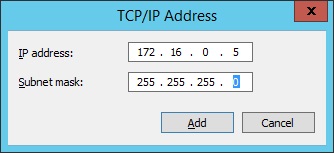
Addressing the Server's interface connecting to the Home Network is the more complicated,  you will need to assign multiple  Home Network addresses to the Windows Server's interface connecting to the Home Network,  The Gateway needs to hold those IP addresses that will be Translated.


1)  Assign an IP address to the interface manually, give it a gateway and DNS server.
2)  Click the advanced button.

3)  Click the Add button and add each of the IP address you determined you needed.

4) Enter the IP address and Subnet mask one at a time.

Step 3 - Routing and Remote Access Server

Install the Remote Access (routing) Role on your Windows Server with Server Manager.  There are plenty of good guides and videos on how to install features if you are unfamiliar with this process.  Make sure that Routing and NAT are installed.


Once installed open the "Routing and Remote Access"  Console (found in the start menu), right click on your local server and click "Configure and Enable Routing and Remote Access".

Select "Custom Configuration" and click next.

Select NAT and LAN Routing. click next and finish the wizard.

Step 4 Configuring NAT

First adding the "Private Interface"


In the Routing and Remote Access Server (RRAS) management console right click on your server's IPv4_> NAT.    Right click and select New Interface.
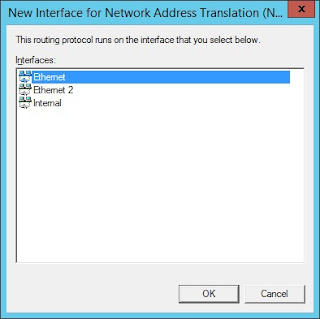


Choose the Network Interface connected to the Lab Network.


Leave it as "Private" and click ok.


Add another New Interface for the interface connected to your Home Network and set it to "Public" and check the box to enable NAT.


Click on "Address Pool" TAB and then the "Add" button . A window should pop up to enter ll need to provide the Start Address, Mask, and End Address.   Note you can add all you want here, but unless the Interface has the IP address configured for the IP it will not be routed to it.


With the menu still open, click on "Reservations" and in the new window click "Add".


 Another window should pup up and to manually enter the Public and Private addresses for one reservation,  Make sure the "allow incoming sessions" option is checked.    Repeat for all Hosts on the Lab Network, the documentation suggested earlier will be real handy for this.

After everything is added, click ok to close the menus, NAT should be set up.

Step  5 Static Routing

The Gateway is now effectively a router,  but still needs a route.    A static "default" route will be needed to for the Lab Network Gateway to know the way out.


In the RRAS management console click on your server name, IPv4, and Static Routes. Right click and select "New Static Route"
A new window will open up,  select the interface on your Home Network, and enter the Destination of 0.0.0.0 , Network Mask of 0.0.0.0 , and for the Gateway the Address of your Home Network's. Leave the Metric at it's default value. Click OK to add the Route.

Step 6 - Test your new gateway.

Ping from a "Lab Network" host to IP's on your "Home Network"  and remote into one of your Lab Network's hosts from the Home Network.  If something doesn't work,  double check your addressing and NAT reservations in case there was an error.

Final note
Hosts on the Home Network should not be able to connect to IP  addresses held by hosts on the Lab Network, instead use the corresponding NAT reservation's "public" address.


Have fun - Steadman

Debian/Ubunt Package Installation from Default Repositories.

Before you Begin Note: This is meant to be a building upon the previous posts with minimal repetition, the previous post has relevant info...